
Samsung T290 Troubleshooting
Here's a simple guide to fixing common issues with your Samsung T290 tablet.
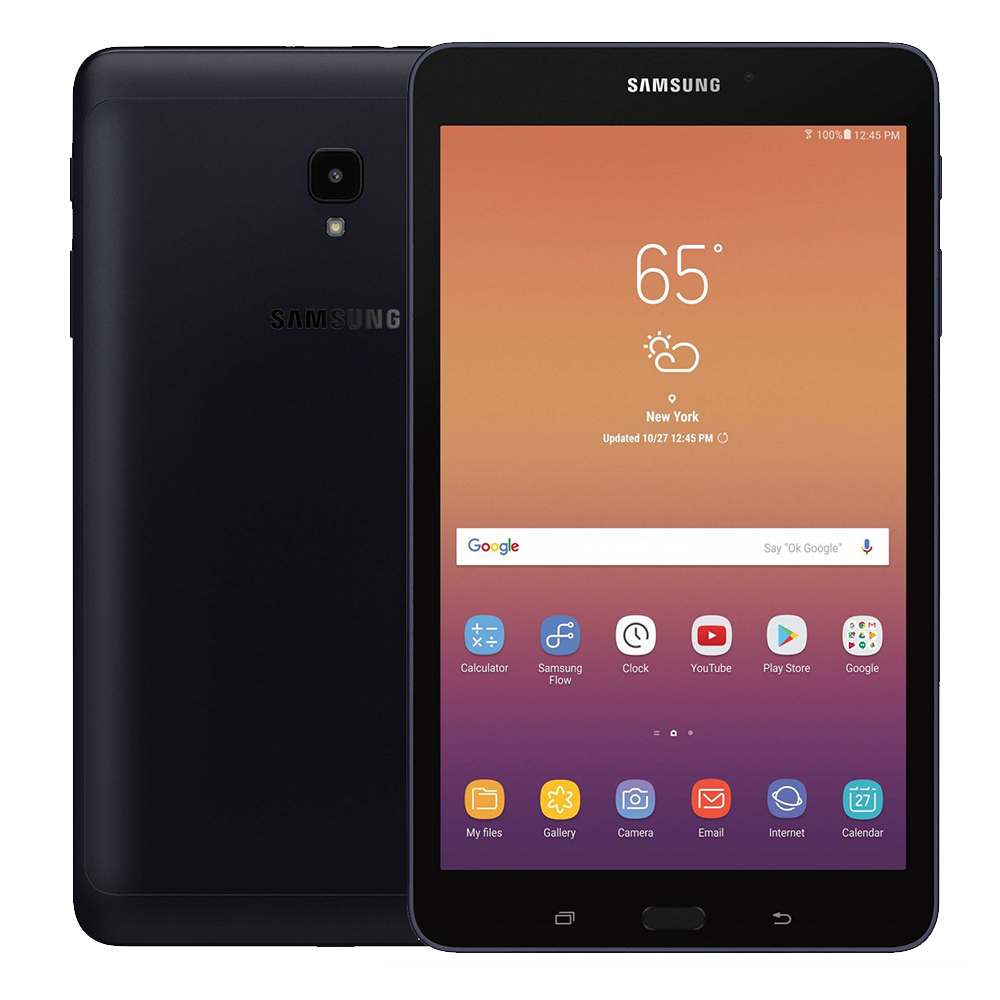
Common issues
1. Device not turning on
Check whether any power lights show up when you hold the power button for 10–15 seconds.
Test the charger with another device (another tablet).
If the charger is not working, purchase a new adapter locally.
If the device still does not power on, it needs a full device replacement. The A1 terminal we'll be shipping might or might not connect to Wi-Fi. Be ready to connect it via Ethernet if Wi-Fi fails.
2. Device is slow or laggy
Check when the slowness started and whether multiple apps are open.
Close unused apps and try again.
3. Not connecting to Wi-Fi
Check whether other devices at the location can connect to Wi-Fi.
Long press the Wi-Fi network, tap Forget, and try reconnecting.
If that fails, go to Settings → Search Reset → Reset Network Settings.
If Wi-Fi still doesn't work, the T290 cannot be connected to Ethernet. The device can be replaced with an A1 terminal. Be ready for the Ethernet requirements described in the note above.
4. Application stuck on the loading page
Check whether the app has worked previously.
Check whether there was a recent update prompt and whether it was clicked.
Restart the app, then log out and log in again.
5. Swollen battery
Provide an image and a video of the device as proof.
The device needs immediate replacement.
Confirm your shipping address and preferred shipping method (Standard or Express).
The A1 terminal we'll be shipping might or might not connect to Wi-Fi. Be ready to connect it via Ethernet if Wi-Fi fails.
6. Reprovisioning the Samsung T290 using the 6-tap QR method
Turn on the device.
Factory reset: Go to Settings → System → Reset Options → Erase all data (factory reset). Confirm and wait for the device to reboot.
At the Start screen, do not tap Start. Tap anywhere outside the Start button quickly 10 times. The Scan QR Code screen will appear.
Scan the provided QR code.
Connect to Wi-Fi when prompted.
You'll see a message: This device belongs to your organization. Tap Start.
The device will load a page: Getting ready for work setup. Wait about 10 seconds.
When Let's set up your work device appears, tap Accept.
On Keep your work apps at your fingertips, tap Next.
On This device isn't private, tap Next.
On the Google Services page, select all and tap Accept.
Provisioning will begin automatically. Wait 5–8 minutes.
Once complete, the device is ready for use.
Last updated
Was this helpful?